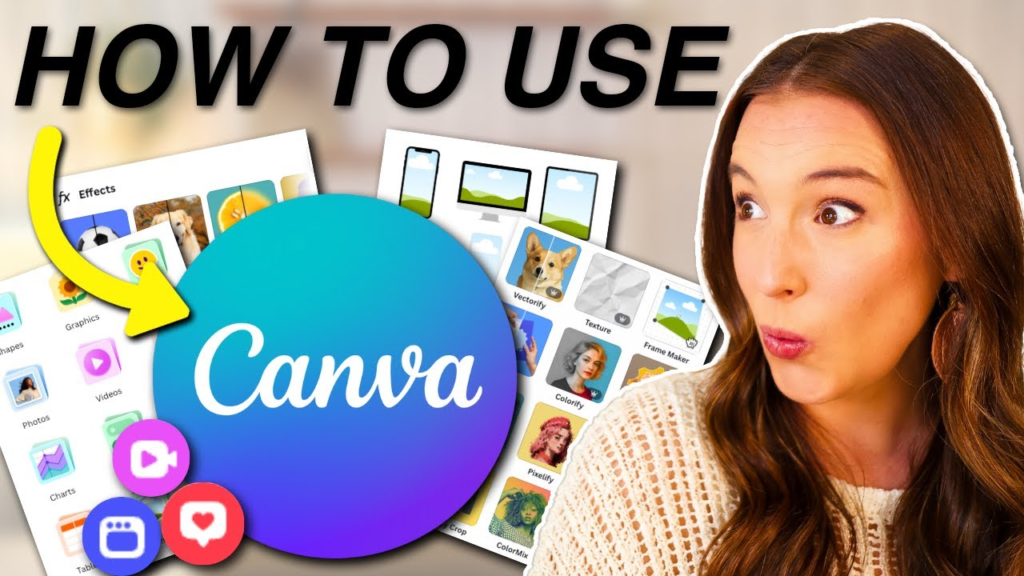
Learn how to use Canva in 2026 with step-by-step tutorials for creating stunning designs. Discover Canva templates, AI tools, branding features, social media graphics, presentations, and design tips for beginners and professionals.
But things have completely changed. Today, whether you need a quick Instagram story, a high-stakes presentation for work, or a sleek logo for your side hustle, you can create it yourself. And you don’t need a design degree to do it.
Canva has completely leveled the playing field. It’s become the go-to tool for millions of students, small business owners, and creators because it turns what used to be a frustrating chore into something genuinely fun and accessible.
In 2026, Canva is smarter than ever, packed with helpful AI features and video tools that do the heavy lifting for you. If you’ve been wanting to upgrade your visual game, this guide will walk you through exactly how to get started and create something you’re proud to share.
What Exactly Is Canva?
Think of Canva as your friendly, all-in-one digital art studio. It is a cloud-based design platform that lets you create everything from posters and resumes to fully edited videos and websites right from your browser or phone.
Unlike traditional software that throws you into a blank workspace with no direction, Canva is built for real people. It gives you all the pieces to the puzzle—fonts, photos, shapes, and layouts—and lets you put them together using simple, intuitive drag-and-drop actions.
Why Everyone Is Using It
The secret to Canva’s massive popularity is simple: it saves you time and cures blank-page anxiety.
Instead of staring at a white screen wondering where to start, you can browse thousands of beautiful, pre-made layouts designed by professionals. You aren’t copying someone else’s work; you’re using their structure as a springboard. It completely removes the guesswork from formatting, sizing, and color coordination, allowing anyone to look like a pro.
Getting Started: Your First Five Minutes

Getting up and running takes less time than making a cup of coffee.First, head over to the website and sign up for a free account using your email or Google login.
The moment you log in, you’ll land on your main homepage dashboard. Don’t worry about getting overwhelmed—the interface is incredibly clean. There’s a big search bar right at the top asking, “What will you design today?” You can type in exactly what you need, from “bakery flyer” to “pitch deck,” and Canva will point you in the right direction.
Finding Your Way Around the Dashboard
Your dashboard is your creative control room. On the left-hand side, you’ll find a clean menu where all your previous projects and personal folders live. This is also where you can access the Magic Studio (Canva’s smart AI toolkit) and your Brand Kit if you’re running a business.
The center of the page dynamically suggests popular templates based on what’s trending or what you’ve designed in the past, making it easy to jump right into a project.
Step 1: Picking the Perfect Template
The easiest way to start a project is to let templates do the heavy lifting.
If you want to create an Instagram post, don’t try to guess the exact pixel dimensions. Just type “Instagram Post” into the search bar. Canva will instantly generate thousands of options that are perfectly sized and ready to edit.
Take your time scrolling through the options. Look for a basic structure, layout, or vibe that catches your eye. Remember, you can change everything later, so focus on the general arrangement of elements.
Step 2: Customizing It to Make It Yours
Once you click on a template, you’ll enter the editing room. This is where the magic happens.
Every single thing you see on the screen can be changed. Simply click on any item—a block of text, a background shape, or an image—to select it.
A dynamic toolbar will pop up at the top of your screen, showing you exactly how you can modify that specific item. You can swap colors, delete parts you don’t like, resize boxes, or move elements around just by dragging your mouse.
Playing with Fonts and Text

Words matter, but how they look matters just as much. Canva makes typography incredibly easy.
When you click on a text box, you can choose from hundreds of clean, modern, and stylized fonts.
If you aren’t sure which fonts look good together, Canva offers curated font pairings in the left sidebar that are guaranteed to complement each other. You can also use the Effects panel to add subtle drop shadows, lift text off a dark background, or curve your words into a perfect circle with one click.
Adding Stunning Images and Graphics
A great design needs great visuals. In the Elements tab on the left menu, you have a massive library of free stock photos, illustrations, shapes, and animated stickers at your disposal.
[ How Frames Work ]
Choose a Frame (like a circle) -> Drag any photo over it -> It automatically crops perfectly!
Type a keyword into the search bar, find a graphic you like, and click it to drop it onto your page. If you want to use your own photos, just drag them directly from your computer desktop right onto the canvas. Use Canva’s Frames tool to automatically snap images into perfect circles, arches, or geometric shapes.
Designing for Your Social Media Feed
If you’re trying to build an online presence, consistency is everything. Creators and businesses use Canva to batch-produce Instagram grids, TikTok covers, and Facebook graphics in record time.
Because social media platforms constantly change their layouts and preferred dimensions, Canva’s team updates their templates automatically. This keeps your content looking perfectly cropped and crisp, no matter where you post it.
Rocking Your Next Presentation
Let’s be honest: traditional slideshow presentations can be incredibly boring to look at. Canva fixes that.
You can choose beautifully cohesive, multi-page presentation templates that ensure your title slide, data pages, and talking points all match perfectly.
You can add smooth cinematic transitions between slides, embed live charts, and even present directly from your browser. If you’re working remotely, you can record your voice over the slides and send a viewable video link to your team.
Creating a Simple, Clean Logo
You don’t need a high-end branding agency to get a clean, memorable logo. Canva provides a fantastic starting point for startups and personal projects with its minimalist logo templates.
By combining simple geometric icons with clean text, you can build a distinct visual mark for your brand. While massive corporations eventually need custom vector software, Canva gives you the speed and flexibility to launch your business and look professional from day one.
Keeping Your Business Brand Consistent
If you’re managing a business, keeping your look consistent across different platforms can be tough. Canva’s Brand Kit is a massive timesaver here.
It acts as your business’s visual anchor. You can upload your official logo, save your specific brand color hex codes, and select your standard company fonts.
Once saved, these elements appear right at the top of your editing sidebar every time you open a new project. Anyone on your team can style a new graphic in your official colors instantly, preventing brand drift.
Yes, You Can Edit Video Too!
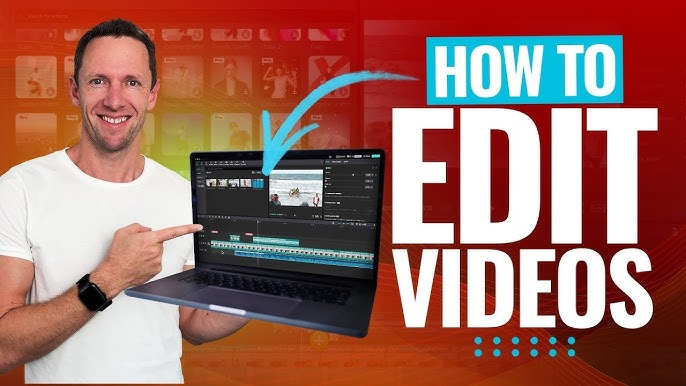
Video is everywhere right now, and you don’t need complex timeline editing software to make something engaging. Canva features a surprisingly powerful built-in video editor.
You can drag your video clips onto a simple visual timeline, trim the edges, drop in background music, and add animated text pop-ups. It’s perfect for making quick, vertical TikToks, YouTube Shorts, or video ads that feel fast, modern, and professional.
Bringing Designs to Life in the Real World
Canva isn’t just for digital screens. If you need physical marketing materials like flyers, business cards, brochures, or event posters, you can design them here with ease.
When you’re finished designing, you can use the Canva Print service. The editor will automatically highlight your “print-safe zones” so nothing gets cut off by the machine. You can then order high-quality, physical prints delivered directly to your front door without ever leaving the app.
Letting AI Do the Heavy Lifting
In 2026, Canva’s Magic Studio features some of the most helpful AI tools available for creators. They aren’t gimmicks—they are genuine timesavers:
- Magic Eraser: Easily brush over a stray background object in a photo to make it vanish completely.
- Background Remover: Cut the background out from behind a person or product layout in just one click.
- Magic Expand: Let AI intelligently generate and extend the edges of a photo that is too small for your layout.
Working Together in Real Time

Great ideas rarely happen in a vacuum. Canva makes it incredibly easy to collaborate with your team or classmates in real time.
You can invite others to your design link, and you’ll see their profile icons moving across the screen as they make edits. You can drop specific comments on elements, tag coworkers to review a layout, and leave feedback right inside the project, eliminating long email chains.
Keeping Your Projects Organized
As you use Canva more, your library of designs will grow fast. To keep from drowning in files, take advantage of Canva’s folder system.
You can create dedicated project folders for specific clients, different social channels, or school classes. Keeping a clean workspace ensures you spend your time actually creating, rather than hunting for that one graphic you made three months ago.
Canva for Students and Classrooms
Students love Canva because it makes academic projects look polished and modern. Instead of turning in a standard, text-heavy report, you can easily build educational infographics, research posters, and visual summaries.
It helps break down complicated information into clean, digestible layouts that make your presentations stand out and keep your audience engaged.
The Secret Weapon for Content Creators

For influencers and creators, the key to winning the algorithm is consistency. Canva allows you to batch-produce content so you aren’t constantly stressed about what to post next.
Using tools like Bulk Create, you can link a simple spreadsheet of text to a single graphic template and output dozens of unique posts instantly. This keeps your feed active while saving you hours of manual work.
Common Mistakes to Keep an Eye Out For
When you have access to thousands of cool graphics and fonts, it’s easy to go a little overboard. Here are a few golden rules to keep your work looking clean:
- Don’t crowd the page: Give your elements room to breathe. Empty space is your friend.
- Limit your fonts: Stick to two, or at most three, complementary fonts per design.
- Prioritize readability: Dark text belongs on light backgrounds, and light text belongs on dark backgrounds. If it’s hard to read, change it.
Quick Design Principles for Pro Results
To instantly upgrade your layouts, always focus on visual hierarchy. Make your most important message or headline the biggest thing on the page so it catches the eye first.
Keep your color palette limited to three or four colors that fit the mood of your project. Finally, use Canva’s automatic alignment lines to make sure everything snaps into perfect alignment, giving your final project a highly professional finish.
Canva Free vs. Canva Pro: Which Is Right for You?
Canva’s free version is incredibly generous and contains more than enough tools, fonts, and templates for casual users, students, and hobbyists.
However, if you are running a business or designing every single day, upgrading to Canva Pro is well worth it. Pro unlocks millions of premium stock photos, gives you full access to the AI Magic Studio features, unlocks the automated Background Remover, and allows you to build out your custom corporate Brand Kit.
The Bottom Line on Modern Design
At the end of the day, visual communication is a massive part of our daily lives. Canva successfully breaks down the barriers that used to make design feel intimidating.
By combining an easy-to-use interface with powerful automated features, it gives you the freedom to focus entirely on your message and creativity. Open up a tab, pick a template, and start experimenting—you might surprise yourself with what you can build.