
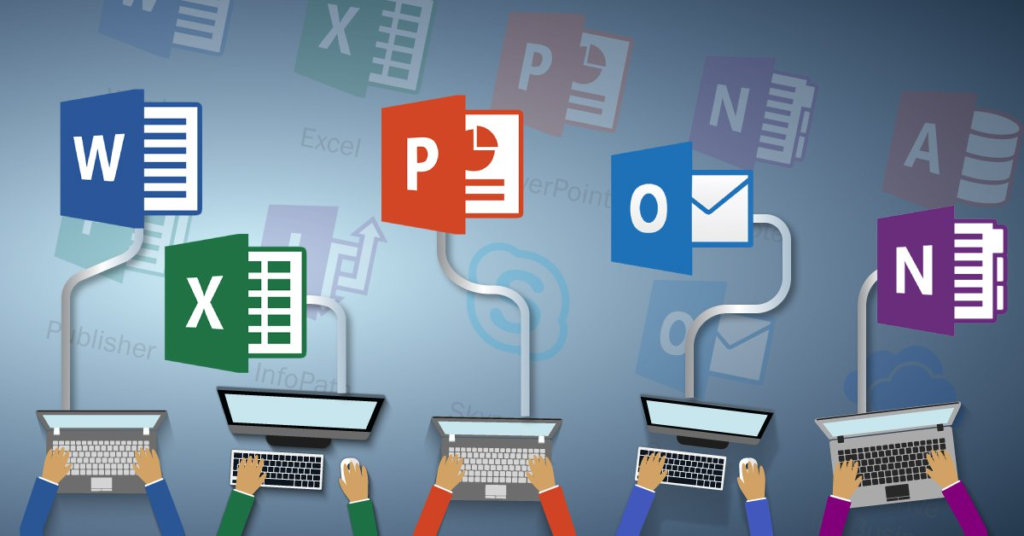
Microsoft Office is one of the most powerful and widely used productivity software suites in the world. Whether you’re preparing a school assignment, managing office tasks, creating business reports, or organizing personal projects, Microsoft Office offers the tools needed to complete your work efficiently. Millions of students, professionals, entrepreneurs, and businesses rely on Microsoft Office every day because it simplifies complex tasks and improves productivity.
If you’re new to Microsoft Office, the number of applications and features may seem overwhelming. However, once you understand the purpose of each application and practice using its basic features, you’ll quickly become more confident. This guide explains the essential Microsoft Office applications, their benefits, and practical tips to help you work smarter.
What Is Microsoft Office?
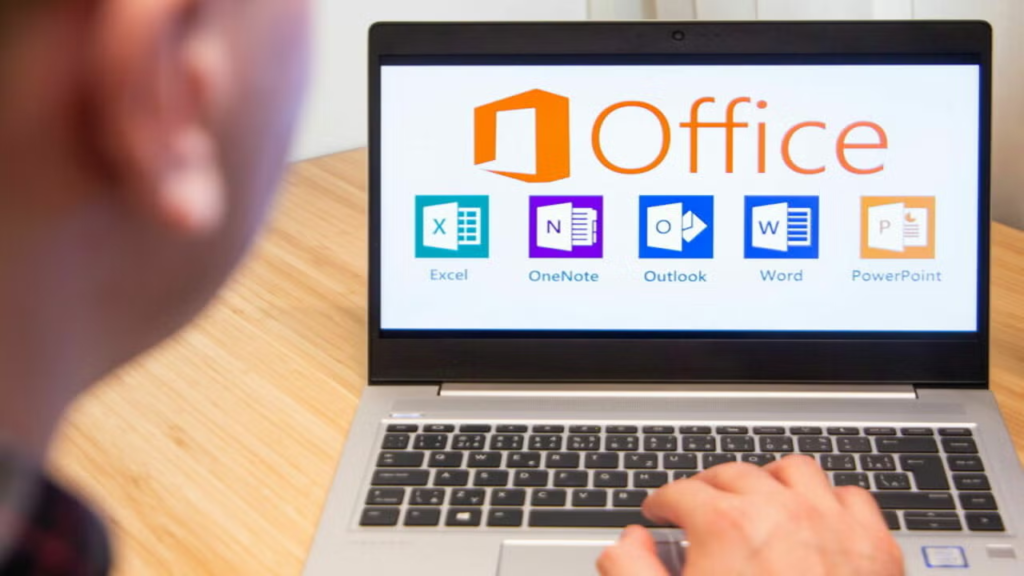
Microsoft Office is a collection of applications designed to help people create documents, organize information, analyze data, communicate professionally, and collaborate with others. Instead of using different software for every task, Microsoft Office combines everything into one integrated platform.
The suite includes applications like Microsoft Word, Excel, PowerPoint, Outlook, OneNote, and Access. Each program serves a unique purpose while working seamlessly with the others. Whether you’re writing a report or presenting business ideas, Microsoft Office provides reliable tools for every stage of your work.
Why Learning Microsoft Office Is Important
Microsoft Office skills are among the most requested technical skills in today’s workplace. Employers across almost every industry expect candidates to know how to create documents, manage spreadsheets, prepare presentations, and communicate professionally through email.
Beyond career opportunities, Microsoft Office also improves personal productivity. Students can complete assignments more efficiently, freelancers can organize projects, and business owners can manage operations without needing multiple software solutions. Learning these tools is an investment that benefits both your personal and professional life.
Getting Started with Microsoft Word

Microsoft Word is the most popular word-processing application in the Office suite. It is used to create letters, resumes, reports, contracts, newsletters, proposals, and academic documents. Its simple interface allows beginners to start writing immediately while providing advanced formatting tools for professional users.
As you become familiar with Word, you’ll learn how to format text, insert images and tables, create headers and footers, use templates, and collaborate with others using comments and Track Changes. These features help produce polished documents suitable for school, work, or business.
Learning Microsoft Excel
Excel is one of the most powerful spreadsheet applications available. It helps users organize information, perform calculations, analyze large amounts of data, and create charts for better decision-making.
Beginners can start by learning how to enter data, format cells, and create simple formulas. As your confidence grows, you can explore functions like SUM, AVERAGE, IF, COUNT, and VLOOKUP. Advanced features such as PivotTables, charts, and conditional formatting make Excel an essential tool for finance, accounting, sales, and project management.
Creating Professional Presentations with PowerPoint
PowerPoint is the preferred application for creating presentations in schools, businesses, and conferences. It allows users to combine text, images, charts, videos, animations, and transitions into engaging slides.
A successful presentation isn’t about adding as much information as possible. Instead, focus on clean layouts, readable fonts, and visuals that support your message. Practicing your presentation skills alongside slide design ensures your audience stays engaged and understands your ideas.
Managing Emails with Outlook

Microsoft Outlook is much more than an email application. It helps users organize emails, schedule meetings, manage contacts, create reminders, and maintain calendars.
Professionals use Outlook to communicate efficiently while keeping track of important deadlines and appointments. Features like folders, categories, search filters, and automatic rules make it easy to organize large volumes of emails and improve daily workflow.
Taking Better Notes with OneNote
OneNote is a digital notebook that helps users organize ideas, meeting notes, research, lecture materials, and personal projects. Unlike traditional notebooks, OneNote allows you to include text, images, checklists, links, audio recordings, and even handwritten notes.
Because everything syncs across devices, you can access your notes from your laptop, tablet, or smartphone anytime. This flexibility makes OneNote an excellent tool for students and professionals alike.
Working with Microsoft Office Online
Microsoft Office is now available both as traditional desktop software and as cloud-based online applications. Office Online allows users to create and edit documents directly from a web browser without installing software.
Cloud storage through OneDrive automatically saves your work, reducing the risk of losing important files. Real-time collaboration also allows multiple people to edit the same document simultaneously, making teamwork faster and more efficient.
Keyboard Shortcuts That Save Time

Learning keyboard shortcuts is one of the easiest ways to increase productivity. Instead of repeatedly using the mouse, shortcuts allow you to perform common actions almost instantly.
Some useful shortcuts include Ctrl + C for Copy, Ctrl + V for Paste, Ctrl + S for Save, Ctrl + Z for Undo, Ctrl + P for Print, and Ctrl + F for Find. Using these shortcuts regularly can save several minutes every day, which adds up significantly over time.
Organizing Your Files Efficiently
Creating documents is only part of being productive. Organizing your files properly makes them easier to locate and reduces unnecessary stress.
Create separate folders for different projects, use clear file names, and save documents regularly. Backing up important files using OneDrive ensures your work remains safe even if your computer experiences technical problems.
Collaborating with Teams
Modern workplaces often require multiple people to work on the same project. Microsoft Office makes collaboration simple by allowing users to share files, leave comments, suggest edits, and track changes.
Instead of sending multiple versions of the same document through email, teams can work together in real time. This improves communication, reduces confusion, and ensures everyone is working with the latest version.
Common Mistakes Beginners Should Avoid

Many beginners overlook important features that make Microsoft Office easier to use. Forgetting to save files regularly, ignoring templates, using inconsistent formatting, and avoiding keyboard shortcuts can reduce productivity.
Another common mistake is trying to learn everything at once. Focus on mastering one application before moving to another. Small, consistent improvements build confidence and lead to long-term success.
Tips for Mastering Microsoft Office Faster
The best way to learn Microsoft Office is through regular practice. Create simple documents in Word, build basic spreadsheets in Excel, and design presentations in PowerPoint. Each project helps reinforce what you’ve learned.
Watching tutorials, exploring templates, and experimenting with different features also accelerate your learning. Don’t be afraid to make mistakes—they’re part of the learning process and often lead to a deeper understanding of the software.
The Future of Microsoft Office
Microsoft continues to improve Office by adding artificial intelligence, automation, and cloud-based collaboration features. AI-powered writing suggestions, automatic design recommendations, smart data analysis, and meeting summaries help users work faster and more accurately.
As workplaces become increasingly digital, Microsoft Office will continue evolving to meet changing business needs while helping individuals stay productive across multiple devices.
How Microsoft Office Improves Everyday Productivity
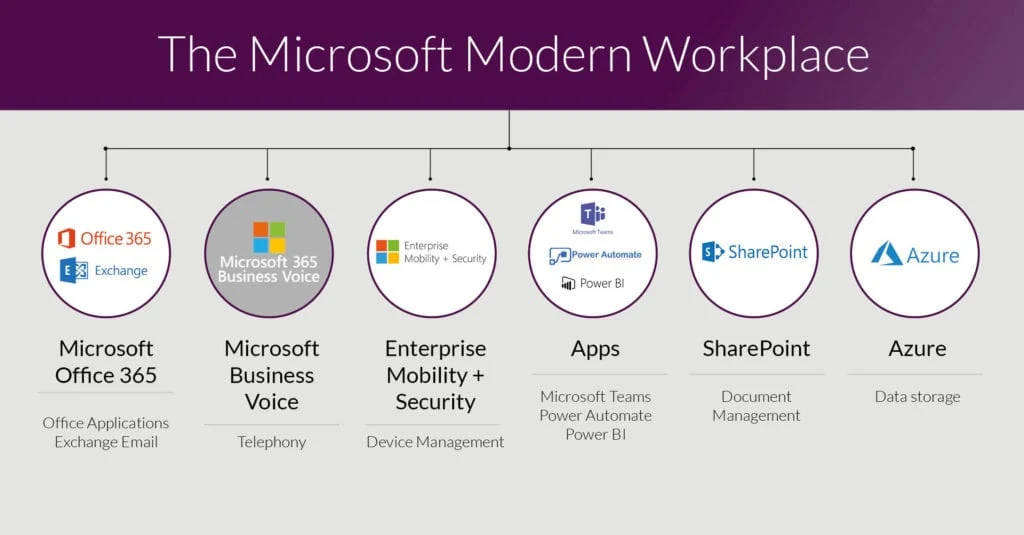
Microsoft Office is designed to simplify everyday tasks and help users work more efficiently. Whether you’re preparing a school assignment, managing office documents, tracking expenses, or planning an event, the Office applications help reduce manual work and improve organization. Instead of juggling multiple software programs, you can perform most daily tasks within one integrated platform.
Using Microsoft Office regularly also helps build better work habits. Features like templates, automatic saving, spell checking, and cloud storage save valuable time while reducing errors. As you become more familiar with these tools, you’ll notice that routine tasks become quicker and easier to complete.
Cloud Integration with OneDrive
OneDrive has transformed the way people store and access files. Instead of saving documents only on your computer, you can securely store them in the cloud and access them from almost any device with an internet connection. This is especially useful for people who work remotely or switch between multiple devices during the day.
Cloud integration also protects your important documents from accidental data loss. Even if your computer stops working, your files remain safely stored online. Automatic synchronization ensures that you’re always working on the latest version of your document.