
Let’s talk about something that hits close to home for every creator out there: tool fatigue.
It’s 2026, and we are absolutely drowning in content creation apps. Every single week, there’s a new AI generator, a shiny new video editor, or an “all-in-one” workflow platform claiming it’s going to revolutionize your life. But if we’re being completely transparent? Having 35 apps open on your desktop doesn’t make you a better creator. It just makes your laptop fan sound like a jet engine taking off.
You don’t need a bloated tech stack to make incredible stuff. You just need a handful of battle-tested tools that actually match your creative rhythm.
Whether you’re grinding on YouTube, dropping daily Reels, running a podcast, or streaming games to five people or fifty thousand, here is an honest, no-fluff breakdown of the best media tools right now—and how to use them without losing your mind.
Quick Reference: Matching the Tool to Your Creative Vibe
Before we dive into the details, here is a quick cheat sheet based on what you actually do all day:
| If Your Main Focus Is… | Your Go-To Starter Stack | Why It Works |
| Short-Form Video (Reels, TikTok, Shorts) | CapCut + Canva | Insanely fast edits, quick auto-captions, and easy thumbnail templates. |
| Long-Form Video & YouTube | DaVinci Resolve or Premiere Pro + Photoshop | Deep color control, multi-track timeline editing, and high-res thumbnails. |
| Podcasting & Voice Work | Descript + Audacity (or Audition) | Edit audio like a Word doc, clean up background hums in seconds. |
| Live Streaming & Gaming | OBS Studio + Canva | Reliable stream capture with custom overlays and instant alerts. |
| 3D & Motion Graphics | Blender + Figma | High-level visual effects paired with team collaboration canvas. |
The Video Suite: From Quick Clips to Cinematic Edits
1. CapCut: The King of Rapid-Fire Edits
If you are making short-form vertical videos, speed is the name of the game. CapCut has completely dominated this space because it eliminates the friction of traditional video editing.
- Human Reality Check: You don’t need a film degree to use it. In three taps, you can auto-generate accurate captions, throw on a clean text overlay, cut out dead air, and export.
- Best Used For: TikToks, Instagram Reels, YouTube Shorts, and fast promo clips.
2. DaVinci Resolve: The Powerhouse That Costs Nothing
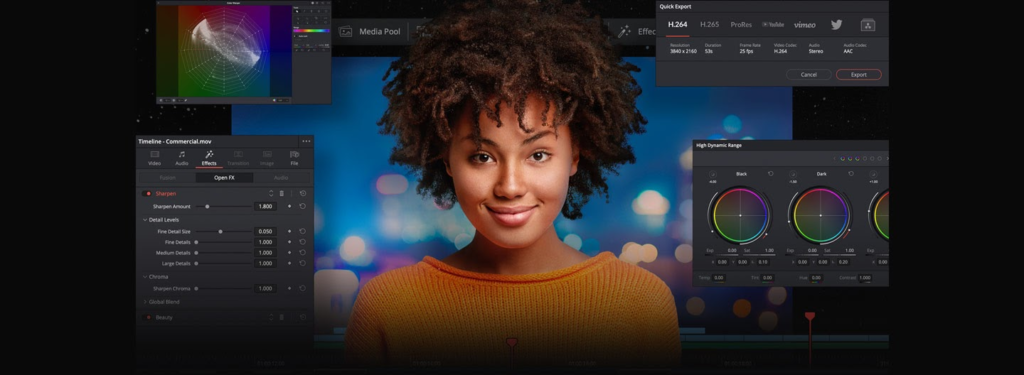
If you want Hollywood-grade video editing without paying a monthly subscription fee, DaVinci Resolve is almost too good to be true. Its free version is more powerful than what most professional studios had a decade ago.
- Human Reality Check: The color grading features are hands-down the best in the industry. However, the node-based workflow has a learning curve that can feel intimidating if you’re a complete beginner.
- Best Used For: Long-form YouTube videos, cinematic vlogs, short films, and serious color correction.
3. Adobe Premiere Pro: The Industry Veteran
Premiere Pro remains the default choice for agency workflows and experienced editors because it integrates seamlessly with After Effects and Photoshop.
- Human Reality Check: It’s subscription-based (which hurts the wallet over time), and yes, it still crashes occasionally when you’re on a tight deadline. Save your project constantly!
- Best Used For: Professional video clients, collaborative team edits, and complex multi-cam projects.
┌─────────────────────────────────────────────────────────────────────────┐
│ THE MODERN VIDEO PRODUCTION PIPELINE                                   │
│                                                                         │
│ 1. SCRIPT & IDEATION ──► Brainstorming & AI outlining                  │
│ 2. RECORDING        ──► OBS Studio / Camera / Mic Setup                │
│ 3. PRIMARY EDIT     ──► Premiere Pro / DaVinci / CapCut                │
│ 4. AUDIO CLEANUP    ──► Descript / Adobe Audition                      │
│ 5. PACKAGING        ──► Canva / Photoshop (Thumbnails & Graphics)      │
└─────────────────────────────────────────────────────────────────────────┘
Audio & Podcasting: Clear Sound Wins Every Time
Here’s a secret that experienced creators know: viewers will forgive mediocre video quality, but they will click off instantly if your audio sounds terrible.
4. Descript: Edit Audio Like a Text Document
If the thought of looking at messy audio waveforms gives you a headache, Descript will feel like magic. It transcribes your audio into text automatically. If you delete a word in the text transcript, it cuts that exact audio out of your recording.
- Human Reality Check: It deletes “ums,” “ahs,” and awkward silences with a single click. It’s an absolute lifesaver for interview-style podcasts.
- Best Used For: Podcast editing, tutorial voiceovers, and turning long audio into short text highlights.
5. Audacity & Adobe Audition: The Precision Cleaners
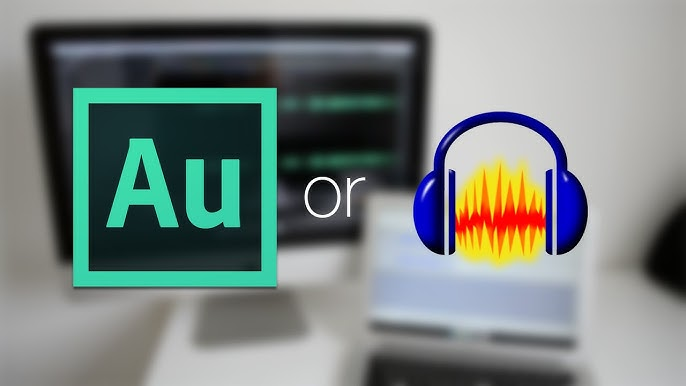
For pure audio manipulation, you have two clear paths:
- Audacity (Free): It looks like a software application from 2004, but under the hood, it’s a lightweight beast. It’s perfect for basic voice tracks and simple noise removal.
- Adobe Audition (Paid): The heavyweight option for restoring damaged audio, balancing voice frequencies, and multi-track radio production.
Visual Design & Packaging: Getting People to Click
6. Canva: The Busy Creator’s Salvation
Purist graphic designers used to look down on Canva, but virtually everyone uses it now. Why? Because when you need a social banner, a slide deck, or a quick YouTube thumbnail in 10 minutes, Canva gets out of your way and lets you work.
- Human Reality Check: Don’t just paste a default template without changing anything. Swap in your own brand colors, custom photos, and distinct fonts so your content doesn’t look identical to a thousand other creators.
7. Adobe Photoshop: Unmatched Precision
When a template-based design tool hits its limit, Photoshop takes over. If you want to cut out a subject from a busy background, build complex thumbnail art, or create custom graphics with lighting effects, nothing tops it.
                  EASY TO USE                  ADVANCED CONTROL
         ┌───────────────────────────┬───────────────────────────┐
         │                           │                           │
  QUICK  │          CANVA            │          CAPCUT           │
 OUTPUT  │   Fast templates, quick   │   Speed-editing clips,    │
         │   social graphics & covers│   auto-captions & trends  │
         │                           │                           │
         ├───────────────────────────┼───────────────────────────┤
         │                           │                           │
 DEEP    │          FIGMA            │   PHOTOSHOP / DAVINCI     │
 CREATIVE│   Collaborative layout,   │   High-end photo manipulation,│
 WORK    │   UI assets & team plans  │   advanced color & FX     │
         │                           │                           │
         └───────────────────────────┴───────────────────────────┘
Streaming & Interactive Media
8. OBS Studio: The Uncontested Streaming Standard
OBS Studio is completely free, open-source software that powers almost every live stream on the internet.
- Human Reality Check: When you open it for the first time, you are greeted with a plain black screen. Don’t panic. You simply add “Sources” (like your webcam, capture card, or desktop display) to build your scenes. Start small with one camera and one audio source, then build up your overlays over time.
9. ElevenLabs & AI Sound Tools: Handle with Care
AI voice technology like ElevenLabs has gotten shockingly hyper-realistic. It can generate natural-sounding voiceovers from plain text in seconds.
- Human Reality Check: Use synthetic voices as a helpful tool—like prototyping a script or voicing a background explainer—not as a substitute for human connection. Audiences ultimately subscribe to you, your personality, and your real flaws.
Free vs. Paid Tools: Where Should You Spend Your Cash?
You don’t need to empty your bank account to make great content in 2026. Here is a realistic breakdown of where to save your money and where to invest:
| Category | High-Value Free Options | When It’s Worth Paying |
| Video Editing | DaVinci Resolve, CapCut | Upgrade to paid subscriptions only if you need team collaboration or ultra-specific AI plugins. |
| Graphic Design | Canva (Free tier) | Paid Canva Pro is worth every penny if you constantly need transparent PNG downloads and one-click background removal. |
| Audio Recording | Audacity, Descript (Free tier) | Invest in hardware (a good dynamic microphone and acoustic treatment) before buying expensive audio software. |
| 3D & Animation | Blender | Blender is 100% free and rivals paid software like Cinema4D. Keep your money in your pocket. |
Practical Rules for Staying Productive
- Audio First, Always: A crisp 1080p video with crystal-clear audio will always beat a 4K video that sounds like it was recorded inside a tin can under water.
- Beware of “App Hopping”: Spending three hours configuring a new productivity app is often just clever procrastination. Stick with tools you know inside out.
- Build Reusable Templates: Create thumbnail templates, video project presets, and audio chains once. Reusing assets saves hundreds of hours over the course of a year.
- Batch Your Production: Don’t open your editing software every single day. Record three videos in one afternoon, edit them all together in a single block, and schedule them out.